Approve accommodations, manage note visibility, and document decision meetings.
Accommodations
Each student profile has an Accommodations section: add classroom or state-testing supports from the catalog (admin adds are approved immediately). The catalog follows WIDA's three tiers: administrative considerations, accessibility supports any multilingual learner may receive (dictionaries, translated directions, home-language forms), and accommodations for a documented disability (extended time, read-aloud, text-to-speech). WIDA ACCESS and Alternate ACCESS are among the assessments you can attach a support to.
Teacher suggestions arrive as Recommended - click Approve to make them official. An accommodation-tier item needs a basis (IEP team decision or 504 plan) before it can be added or approved, and when your district tracks support indicators in Melaa the matching flag must be on file; WIDA: accommodations are decided by the IEP or 504 team, never by an individual educator, and never used for the first time on test day. Approved supports show to the student's teachers and inform the AI assistant.
Export the approved roster for test coordinators from the Progress page (Accommodations roster CSV).
Verify state-testing selections against your state's current accommodations manual before test registration.
Notes visibility
By default a teacher's notes are visible to that teacher plus school/district admins - not to other teachers.
Settings → Student Notes Visibility can open notes to all staff who work with the student.
Review meetings
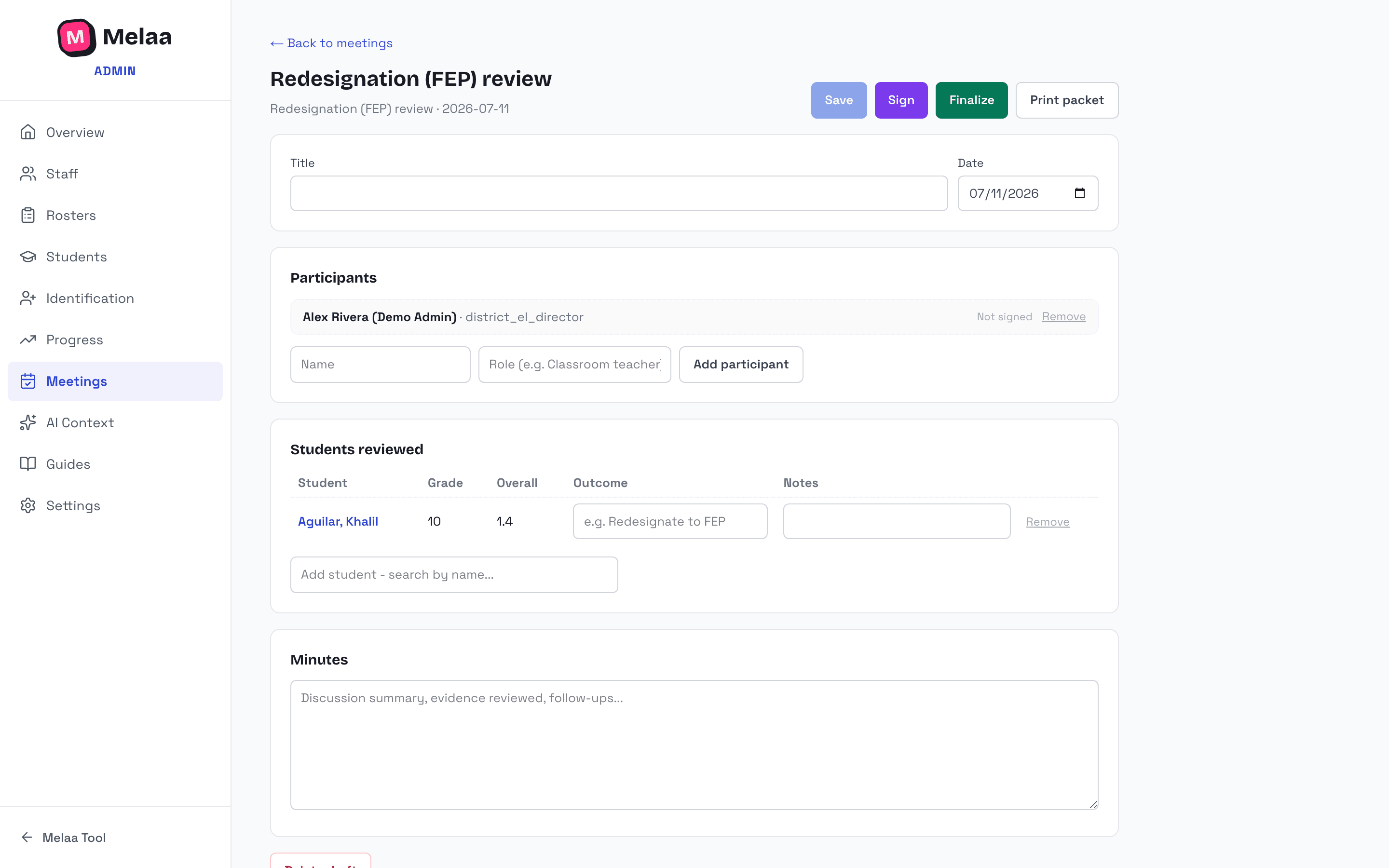
Meetings & Events → + Meeting; pick the type (identification review, redesignation review, annual review, monitoring), set the date, and tag the students being reviewed right from the dialog.
On the meeting, add participants (staff sign electronically with one click; external attendees sign the printed packet), refine the students reviewed with a per-student outcome, and capture minutes. Tagged meetings also appear on each student's profile.
Finalize to lock the record; Print packet produces the signature-line document for files.
Review meeting: participants, students reviewed, and minutes (Melaa Demo District, fictional data)
Meetings & Events calendar, search, export, and sync
Meetings & Events opens as a month calendar on today's month with an Upcoming list beside it. It shows review meetings (colored by type), district events you add (testing windows, deadlines, trainings, family events), the ACCESS testing windows from the ACCESS Testing planner (always in sync, never entered twice), and the identification deadline for every open case. Switch to List for a date-ordered agenda with a heading per day (weekday and date).
Search matches title, kind, school, date, and notes. Filter by what to show (meetings, events, testing windows, identification deadlines), meeting type, draft or finalized, and school or district-wide. School admins see district-wide items plus their own schools' and can add events for their schools; district admins see everything and add district-wide events.
+ Event adds a one-day or multi-day event; click an event to edit or remove it. + Meeting creates a review meeting as before. Export .ics downloads what is shown as a file any calendar app can import, and each item has a one-click Add to Google Calendar or Outlook link.
Subscribe creates a private feed link for your account that Google Calendar, Outlook, or Apple Calendar keeps in sync on its own schedule (Google refreshes every few hours). The feed carries meetings, events, and testing windows with titles, kinds, schools, and dates only; student names, per-student deadlines, and minutes never leave Melaa. Rotate or revoke the link from the same dialog if it is ever shared. Links expire after 12 months; rotating creates a fresh one (re-add it to your calendar).