A tour of the admin area and how to read the Overview dashboard.
The admin area
The left sidebar groups every admin page. On a phone or narrow window (under about 900px wide) the sidebar folds into a Menu button in the top bar; it opens the same list as a drawer. If the list is taller than your screen, it scrolls and shows a "More below" cue.
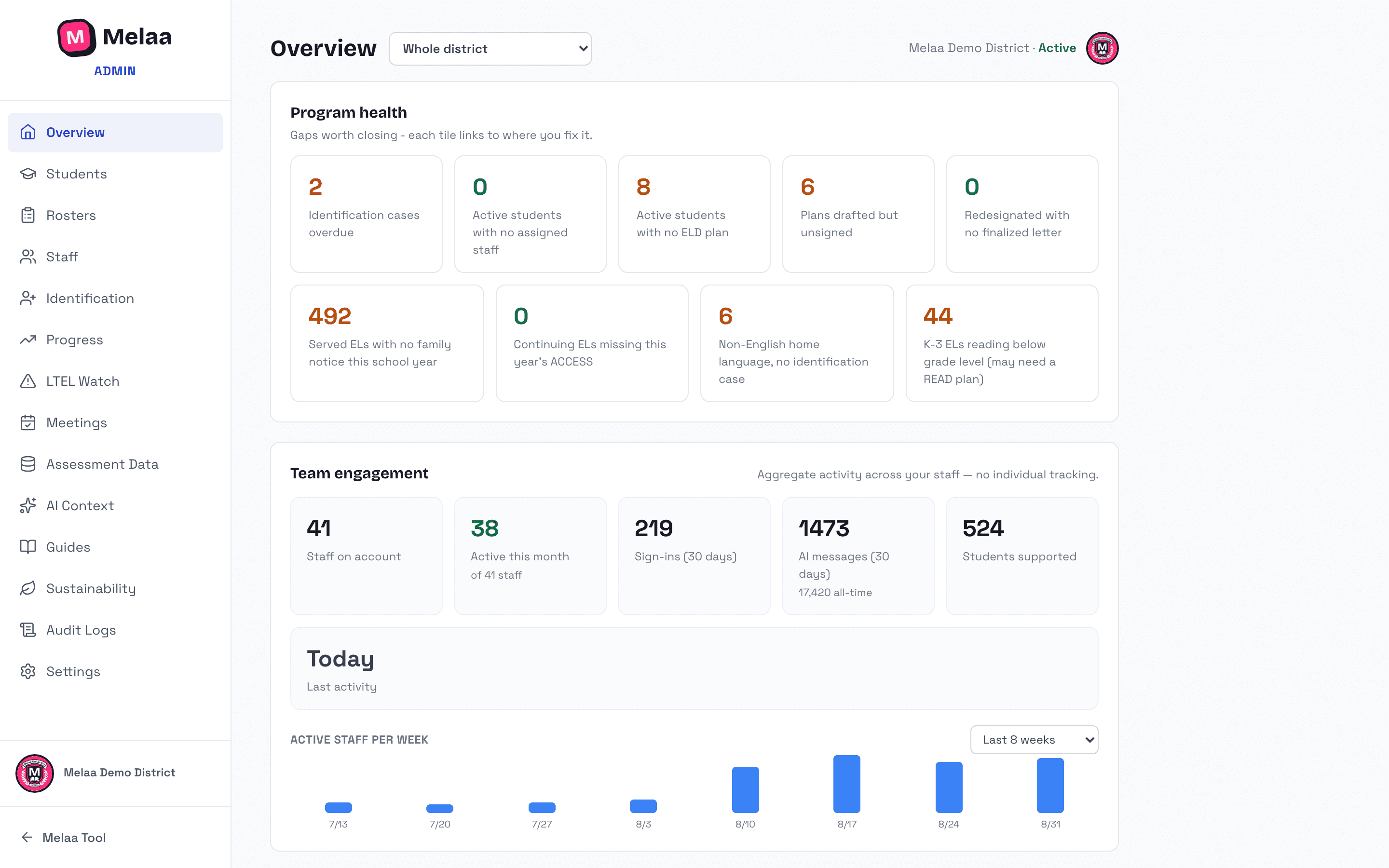
Overview - the district-level dashboard (below).
Students group: Students (the roster: add/edit students, filters, bulk actions, open any student's full profile), Identification (intake queue for newly enrolled students, Home Language Survey through family notification), Family Notices (generate the annual EL family notice or any family letter for many students at once, review the batch, print it as one document, and track delivery for each family), Progress (program-health graphs, redesignation watchlist, exit marking, monitoring, reporting exports), LTEL Watch (long-term-ML early-warning tiers so students who are stalling get flagged before they slip), and Monitoring (check-ins for exited students during the state's monitoring years).
Assessment group: ACCESS Testing (the annual administration planner) and Assessment Data (upload WIDA ACCESS / DRC files and academic assessment scores from any provider, with a history of every file imported on that page).
Program group: Meetings & Events (the program calendar: review meetings with electronic staff sign-off, testing windows, deadlines, trainings, and family events, with export and calendar sync), Program Plan (the district LIEP plan), and Audit Logs (every sensitive action in Melaa, with who and when; see the Privacy guide).
Setup group: Rosters (rostered schools, sections, staff, and students grouped by teacher; Merge buildings combines duplicate school records into one), Staff (invite staff, set roles, assign and reassign students), AI Context (district/school context that shapes every AI answer), Settings (org policies, integrations, plan & billing, and your school logo), and Sustainability (the estimated environmental footprint of your org's AI use).
Help group: Guides - this documentation, with PDF exports and onboarding presentations.
Get help and Suggest a feature sit at the bottom of the sidebar (and in the teacher tool's account menu). Each sends a short message to our team by email; please don't include student names or other student information.
Reading the Overview
A new district first sees a Get started checklist: connect your roster or upload students, upload ACCESS scores, invite staff, set your state and exit rules, and review identification. Each step ticks itself off from your data. The card disappears once every step is done, or choose Dismiss checklist to hide it (remembered on this browser).
The school selector next to the Overview title switches everything below between the whole district and a single school.
Program health comes first, each tile linking to where you fix it: overdue identification cases; students with no assigned staff; missing or unsigned plans; redesignated students without a finalized letter; served ELs with no family notice this school year; continuing ELs missing this year's ACCESS; students with a non-English home language but no identification case; and (Colorado) K-3 ELs reading below grade level who may need a READ plan. The student tiles open the Students page already filtered to exactly those students (the list uses the same definition as the tile), and the overdue tile opens Identification with the Overdue filter on. Students whose only assigned staff member has been deactivated count as having no assigned staff.
Population breaks your students down by designation, school, grade, and home language.
Growth & outcomes shows average year-over-year change, how the population sits against your state's exit bar, and who's on pace to reach it by next spring.
Long-term MLs/ELs (labelled with your state's term) flags active students with 5 or more completed school years of language services: counted from the program entry date when recorded, otherwise from years of ACCESS results. It is the group most worth a program conversation.
The population, growth, long-term ML, and academic-median bands each have a Download CSV button for sharing.
Team engagement (near the bottom, after the program sections) shows big-picture adoption: how many staff are on the account, how many have been active this month, sign-ins and AI messages, students supported, and a weekly activity trend. Use the range picker on the chart to look back 8 weeks, 3 or 6 months, the school year, or any custom month range. It's aggregate only - no individual staff tracking.
Plan & Usage sits at the bottom of the page: a progress bar for this month's AI credits against your plan's pooled monthly allowance (resets on the 1st, with an Add credits link if you need more), a six-month usage trend with how many staff used the AI each month, and your ML-student and staff-seat capacity (staff seats read "N of unlimited" on district plans).
Admin Overview: program health tiles and population breakdowns (Melaa Demo District, fictional data)