Manage the roster, import score files, and control who can change scores.
The roster
Students lists everyone with current scores, 50 per page (Previous / Next at the bottom); search, filters, and sorting apply across every page. Scores show to one decimal place. Filter by school, grade, level, or a Needs attention gap (no assigned staff, no language plan this year, plan drafted but unsigned, no family notice this school year, missing this year's ACCESS, or K-3 reading below 3.0). The Overview tiles open this page with the matching gap already selected, and the link can be bookmarked.
Add students one at a time (+ Add Student) or in bulk from the Assessment Data tab (CSV or Excel .xlsx - DRC/WIDA score files work as-is; the uploader maps your columns and matches schools automatically).
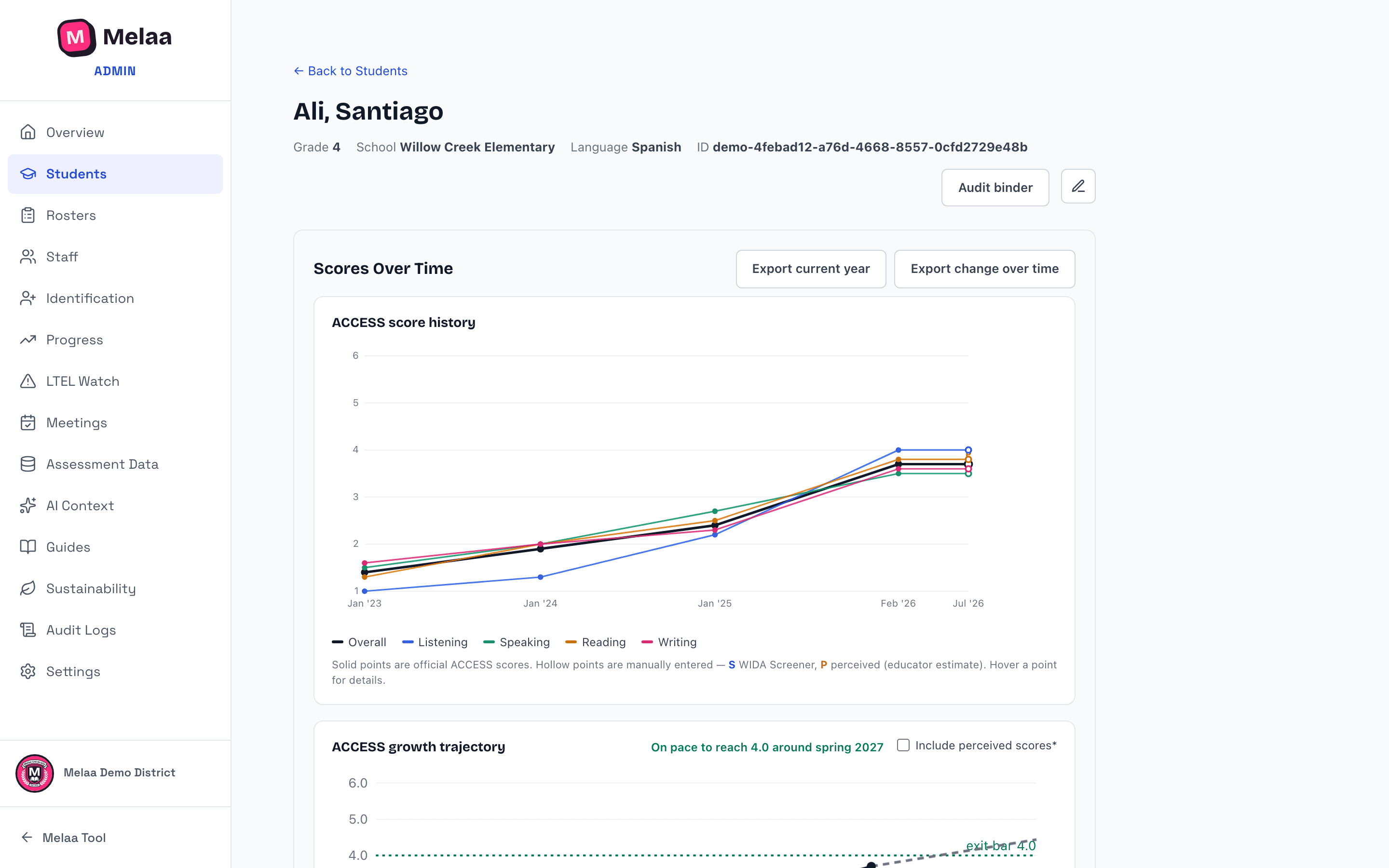
Click a student to open their full profile: score history, growth trajectory, plan, letters, accommodations, notes, and assigned staff.
Every chart has a View as table button underneath that shows the same numbers as a plain table, for screen readers, keyboard users, or copying values. On the growth trajectory the x-axis is labelled by school year (e.g. 2026-27): a fall screener sits in the school year it counts toward, and hovering a point shows the date it was actually given.
In Historical Scores, Edit and Delete stay pinned at the right edge; on a narrow screen, scroll the table sideways to see every domain.
Edit a student with the pencil icon on their profile. Record the date they were first identified as an ML/EL (this drives years in program and the long-term ML/EL flag at 5+ completed years), the date they first enrolled in a U.S. school, and whether they have limited or interrupted formal education (SLIFE). You can add a nickname and tick "Preferred name" to display it in place of their first name everywhere.
Official ACCESS scores arrive via the district file upload on the Assessment Data tab each spring. Before anything imports, a "Before you import" summary shows how many existing students get new-year scores, how many new students will be created, and flags rows with missing or duplicate Student IDs.
Alternate ACCESS results (for students with significant cognitive disabilities, per the IEP team) are their own score type with levels 1-5. In the upload flow, tick "This file contains WIDA Alternate ACCESS results" (or map the file's Test Name column) so those rows import as Alternate ACCESS. They are never mixed with ACCESS scores in a trend and are judged only against your state's Alternate ACCESS exit rule, researched per state in September 2026. Where the state also requires a team determination (an observation form, an IEP-team recommendation, a body of evidence) or publishes a conditional pathway, a qualifying score shows as "review" rather than "meets", and Mark exited asks for the district's basis. Where Melaa has no numeric rule for your state (a scale-score rule, an old A1/P1 label never restated, or nothing published), the profile says exactly what the state says and asks for a manual review.
Screener records (+ Add new score on a student's profile) place new and mid-year enrollees until their first ACCESS results arrive. A screener is an identification instrument: it is judged against your state's identification cut, never the exit rule, and can never put a student on the exit list.
Uploaded ACCESS files keep every row: a domain marked NA (not scored, for example under an IEP exemption) imports as blank with the exemption recorded, and your state's per-domain exit checks skip that domain. Scale scores import alongside proficiency levels when the file has them; WIDA recommends scale scores for growth across grades.
When a file has both a State Student ID and a District Student ID column, the State Student ID is used to match students. A file with several school years, or with both ACCESS and Alternate ACCESS rows for a student, keeps a separate score record for each year and test. The file's grade only updates a student's current grade when the test is from the current school year, and never for a student your roster sync manages, so a fall upload of last spring's scores won't move anyone back a grade. If any part of an import doesn't save, the result says exactly what was and wasn't saved; re-uploading the same file is safe.
Perceived scores let staff record a professional estimate when the official score isn't representative - always shown with an asterisk and the enterer's name.
Every save from the edit dialog asks for confirmation, and changing official scores warns you and points to perceived entry instead - official scores should normally only change to fix an upload error.
Student profile: score history, trajectory, and records (Melaa Demo District, fictional data)
Settings → Score Entry & Editing controls who can do each of these. Defaults: official ACCESS edits are district-admin only; Screener entry includes school admins; perceived entry has its own policy.
Bulk actions & CSV export
Tick individual rows, or the checkbox at the top of the table to select everyone on the current page, to open the bulk toolbar. With a full page selected, choose "Select all N matching students" to extend the selection to every student matching your search and filters, across all pages.
Bulk Assign - attach the selected students to one or more staff members at once.
Edit Selected - change school, grade, or language for the whole selection.
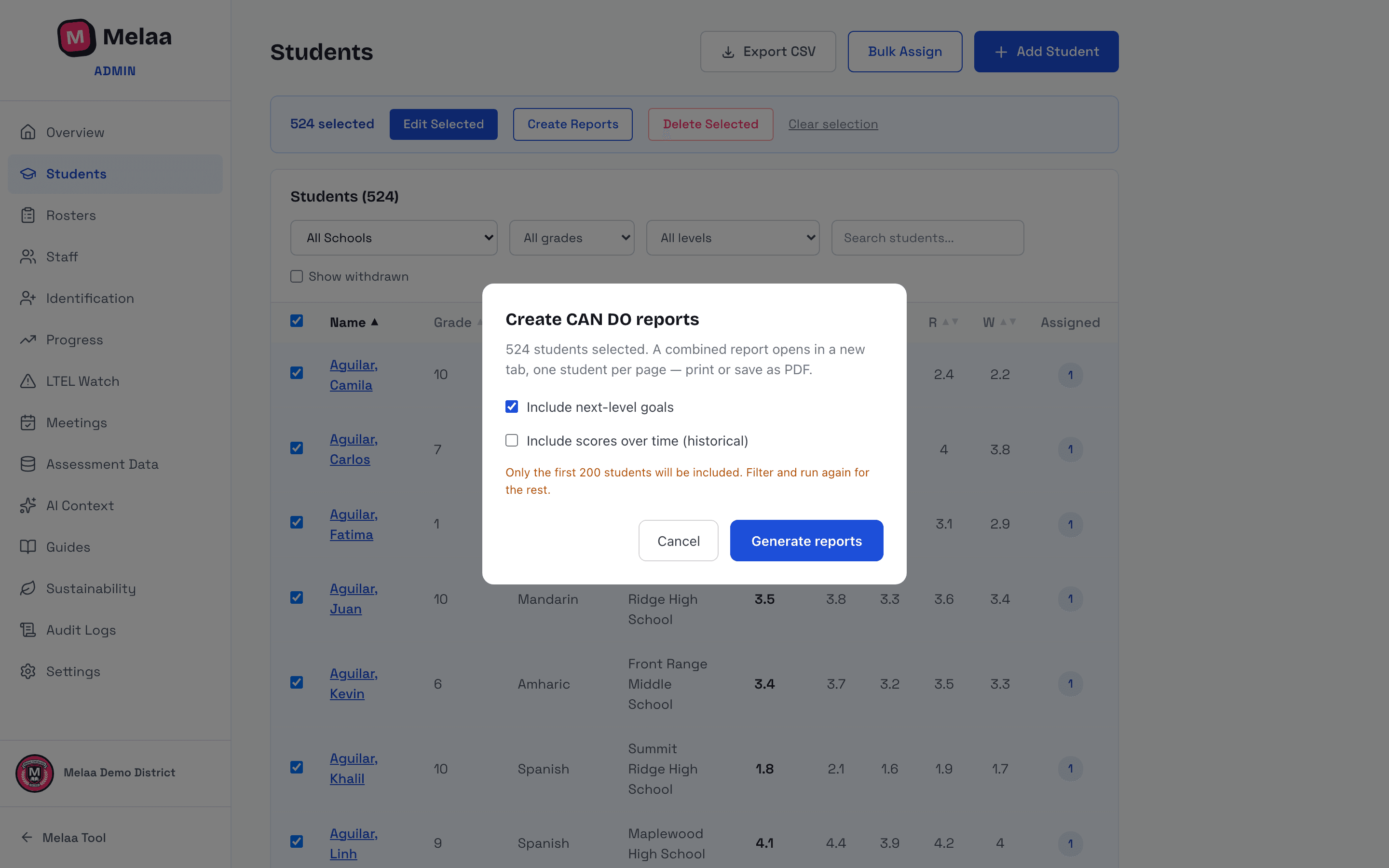
Create Reports - printable CAN DO reports for up to 200 students in one document, with optional next-level goals and score history.
Family Notices - opens the Family Notices page with the selection already ticked, ready to generate one letter type for all of them (see the Family Notices guide).
Delete Selected removes students entirely. Because it can't be undone, you must type DELETE in the confirmation box before the Delete button turns on. Export CSV (top of the page) downloads the full roster with current scores.
Each row also has inline Edit and Assign buttons for one-student changes.
Create CAN DO reports for selected students (Melaa Demo District, fictional data)
Uploads & the Assessment Data tab
The Assessment Data tab holds one combined uploader - switch between "WIDA ACCESS / DRC scores" and "Academic scores" at the top.
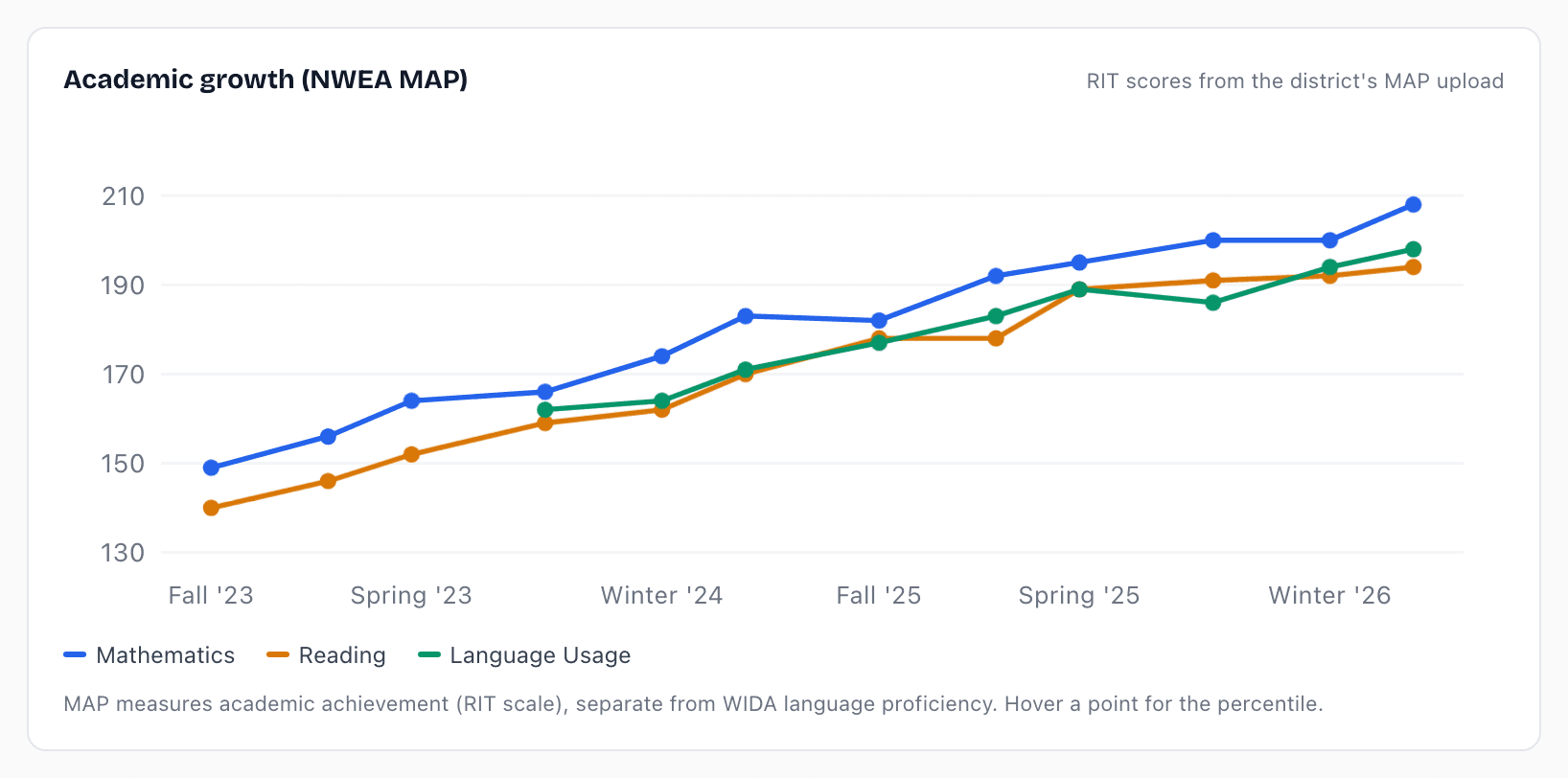
Academic scores accept any assessment your district uses. See the Assessment Data guide for the full walkthrough.
Every file you import is listed below the uploader with its column/row/record counts and can be re-downloaded later.
Academic growth chart on a student profile after upload (Melaa Demo District, fictional data)