Invite staff, understand the five roles, scope access by school, and preview any teacher's view.
The five roles
Owner - everything, including billing and granting the admin role. Usually the person who purchased.
Admin - district-wide: all students, all settings, all tools.
School admin - the same toolkit, scoped to their assigned building(s): their students, their identification cases, their meetings.
Teacher - the teacher tool only, limited to students explicitly assigned to them.
Read-only - can view but never change; useful for auditors or observers.
Inviting staff
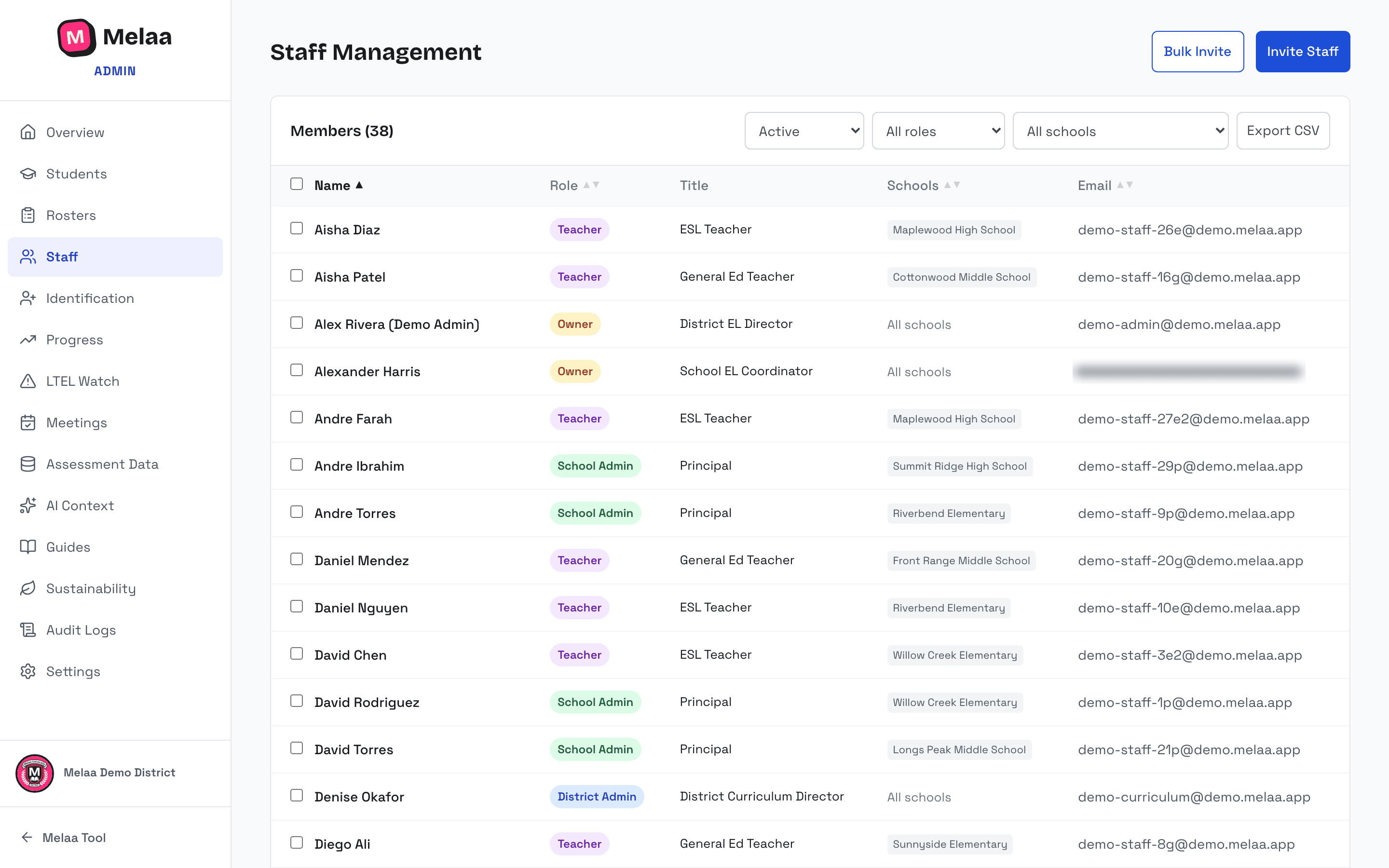
Staff → "Invite Staff" - enter an email and pick the role. For school admins and teachers, assign their school(s) after they join by clicking their name to open the edit dialog (Schools → Manage schools); roster sync also derives school assignments automatically.
"Bulk Invite" accepts many emails at once for onboarding a whole building.
Invites expire after 7 days if unused; pending ones can be re-sent (which restarts the 7-day window) or revoked from the same page. Only an owner can invite, re-send, or revoke an owner or admin invitation.
Staff who sign in with Google, Microsoft, ClassLink, or Clever SSO must use the same email you invited.
Staff page with invite controls (Melaa Demo District, fictional data)
Editing staff
Click a staff member's name to open their edit dialog: change their role and job title, manage their school assignments, record CLD, and reset MFA, deactivate, or remove the account. For another admin or an owner, resetting MFA, deactivating, and removing are owner-only; the org's MFA policy and billing mode / AI key are also changed by owners only.
Tick the checkboxes to bulk-edit the selection - set a role or activate/deactivate several people at once - from the bar above the table. Export CSV downloads the full staff list.
Deactivating one person (Deactivate account in their edit dialog) first shows how many students are assigned to them and lets you reassign all of them to another active staff member in one step, or choose not to reassign. Teachers only receive students in the schools they're assigned to; any others stay with the original person so you can reassign them from Rosters or the Students page.
Deactivated staff no longer count as assigned staff, so their students appear in the Overview tile "Active students with no assigned staff" until someone else is assigned. Bulk deactivation does not reassign students; deactivate people one at a time to hand over a caseload.
Getting students in front of teachers
Teachers only see students assigned to them: pair them from a student's profile (Assigned Staff) or in bulk from the Students page (Bulk Assign); roster sync derives pairs automatically.
Clever/ClassLink sync can manage these pairings automatically from your SIS sections.
A student's profile shows a Class Schedule panel (from your roster sync) listing the classes and teachers they see - use it to decide which teacher should receive a differentiated material.
CLD requirement tracking (Colorado)
Melaa tracks Colorado's Culturally & Linguistically Diverse education requirement (45 clock hours / 3 credits, one-time, at license renewal on/after Sept 1, 2025); the Staff table shows each person's CLD status at a glance.
Open a staff member's edit dialog (click their name) and tick "CLD requirement met" to record it (date, and an optional note for hours/course/provider). This is documentation only - Melaa doesn't verify it with CDE.
Dual roles & View as teacher
Admins who also teach: the dashboard's view selector has a "My students" option that shows just your own caseload.
View as teacher - owners and admins can pick any teacher in the same selector to see the dashboard exactly as that teacher does. The preview is strictly read-only (an orange banner reminds you; editing and chat are disabled). Click Exit to return.
Use it before staff training to sanity-check that each teacher sees the right students.