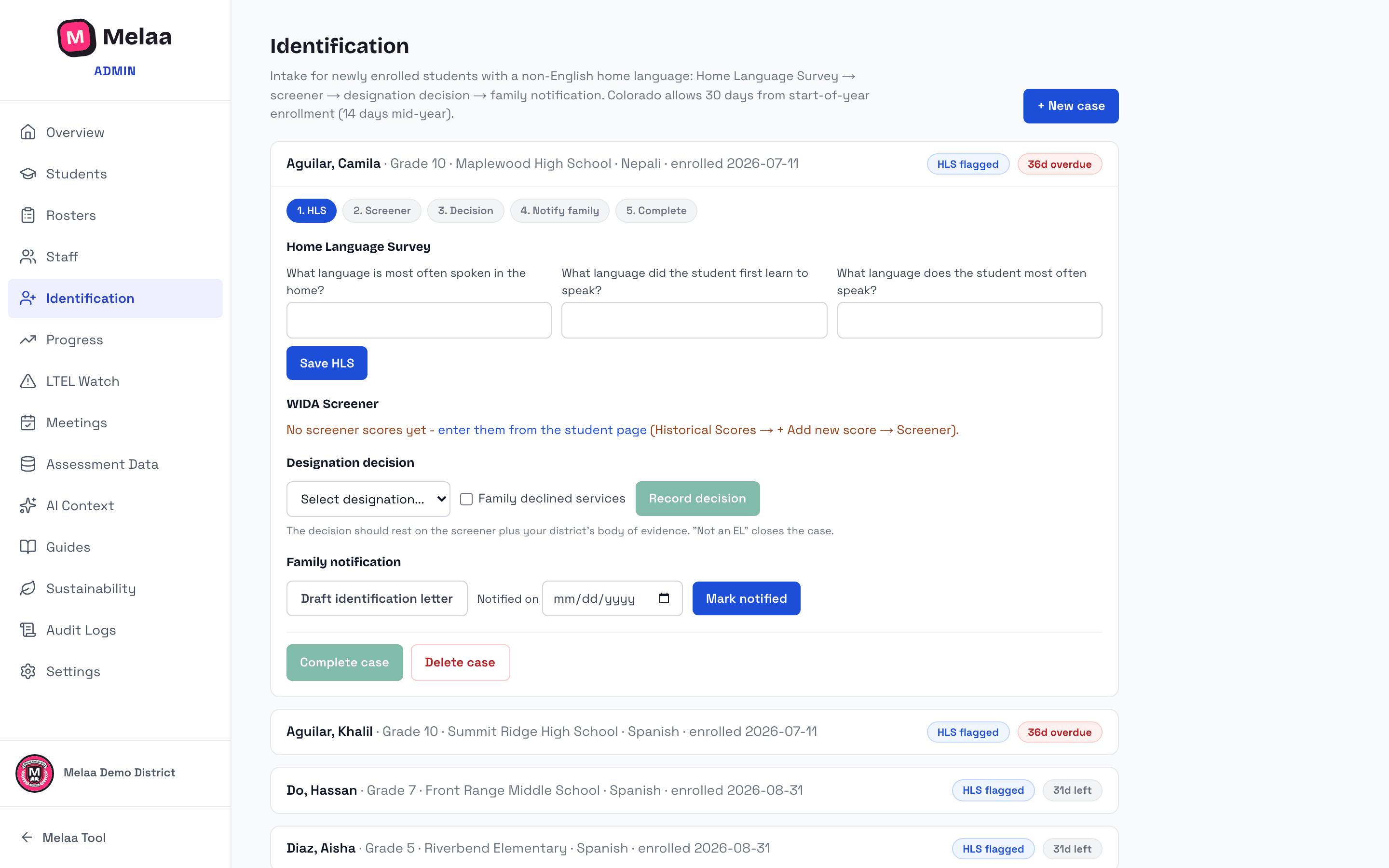
Walk newly enrolled students from Home Language Survey to family notification, on deadline.
When to open a case
Open a case for any student new to the district (start-of-year enrollee or mid-year transfer) whose Home Language Survey flags a language other than English.
Identification → + New case, pick the student, and set the enrollment date - the deadline clock runs from it. If the student isn't in Melaa yet, use "Create a new student" right in the dialog and the case opens for them automatically.
Deadlines follow your state's rule (Colorado, for example, allows 30 days from start-of-year enrollment and 14 days mid-year; states with a single window use it for both). The clock runs from the enrollment date in your district's local time; states that count school days (Delaware, Florida, Rhode Island, and Utah mid-year) are counted as weekdays, since Melaa does not know your holidays, so the date shown is never later than the real one. Each open case shows a days-left badge ("due today" on the last day); overdue cases turn red from the day after the deadline and appear on the Overview dashboard.
Board and table views
The queue opens as a board, one column per stage (HLS flagged, Screening, Decision, Family notified, plus Complete and Not an EL when you show all stages). Drag a case to the next column, or use the card's "Move to" menu with a keyboard. The move asks for what that stage needs: the decision stage asks for the designation, the notified stage asks for the date, and a stage the record cannot support yet (no HLS answers, no screener scores, no decision on file) is refused with a note on what to record first.
Switch to Table for a dense, scannable list: one row per case with grade, school, home language, enrollment date, deadline, stage, screener result, decision, and notified date. Click a row to open the full case editor.
Search matches name, school, language, grade, and decision as you type. Filter by stage (open stages by default), school, and deadline (overdue, due within 7 days). Your view choice is remembered on this browser.
The five steps
1. HLS - record the three survey answers (home language, first language, language the student speaks most).
2. Screener - enter WIDA Screener scores from the student's page (Historical Scores → + Add new score → Screener). The case shows the result and a suggested designation from your state's identification cut (Colorado: 4.0 overall and above suggests PHLOTE, not identified; below suggests NEP/LEP). The exit rule is never applied to a screener.
3. Decision - choose the designation and record it. If the family declines services, tick "Family declined services" and fill in the date declined, how they declined (signed form / verbal / other), and an optional reason - this is stored as a documented waiver and printed in the audit binder. A declined student stays an identified EL: still assessed on ACCESS each year and still monitored. "Not an EL" closes the case.
4. Notify family - one click drafts the identification letter (review it on the Letters page before printing); mark the notified date.
5. Complete case.
Identification case expanded: the five-step wizard (Melaa Demo District, fictional data)