Use the watchlist, mark exits with supporting evidence, and run reporting exports.
Program health (top of page)
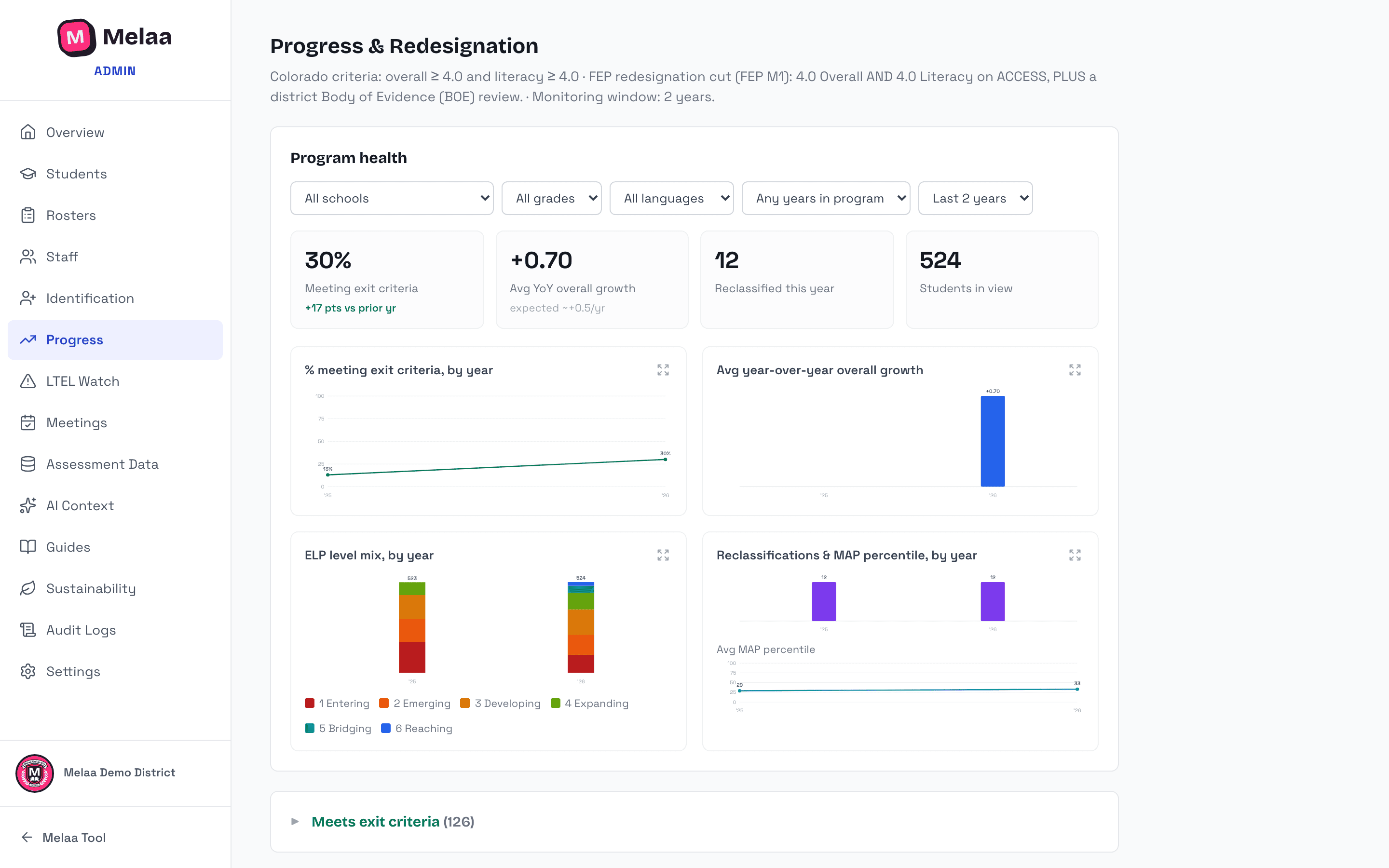
The header graphs your program year-over-year: the share of students meeting exit criteria, average overall growth, the ELP-level mix, and reclassifications alongside average academic percentile.
Choose a time window (last 2, 3, or 5 years) and combine filters - school, grade band, home language, and years in program - to scope the graphs to any slice (e.g. one building and one language) and see where the program is working. The numbers count up and the graphs animate on each change, and any chart expands for a closer look.
The Met exit criteria figure is the share of students tested that year who had not already exited; the line under it shows N of M, and the change from the prior year shows its base. The outcome lists below count active students by their latest ACCESS result and ignore the program-health filters, so their counts can differ from that percentage. Every chart has a View as table button.
The reference pace under the growth tile is a transparent yardstick, not an official WIDA target: about +1.0 overall a year at level 1, +0.5 at level 2, and +0.33 from level 3 up, because growth on ACCESS usually slows as students advance. WIDA's own score report guide notes that it is common for students at beginning levels to progress more quickly.
Students bucket automatically by your state's exit criteria: Meets exit criteria, Approaching (within 0.3), Not progressing (flat or declining year-over-year), and Exited - post-exit monitoring. Each list is a dropdown; click its header to open it. Long lists show 50 students per page.
Sort any list by any column - student, grade, school, overall, literacy, year-over-year change, years in program, or status.
A dagger (†) on a year-over-year change means it compares a 2025-26 result with an earlier year. WIDA reset ACCESS scale scores in 2025-26, so that change has to exceed 0.5 rather than 0.3 to count toward Not progressing; hover the mark or read the footnote under the list.
Expand a student row (the ▸ chevron) to see their ACCESS-over-time chart, average gain per year, last year's growth against the level-based reference pace, and projected years to exit at a pace that slows as they advance - without leaving the page. Click a student's name to open their full profile.
Marking a student exited
Click "Mark exited" on a student who meets your state's criteria on their latest official ACCESS (or Alternate ACCESS) result, or who sits in a state discretionary band (for example Wisconsin 4.5-4.9, Georgia 4.3-4.9) and is labelled "Eligible for review". A screener or perceived score never qualifies.
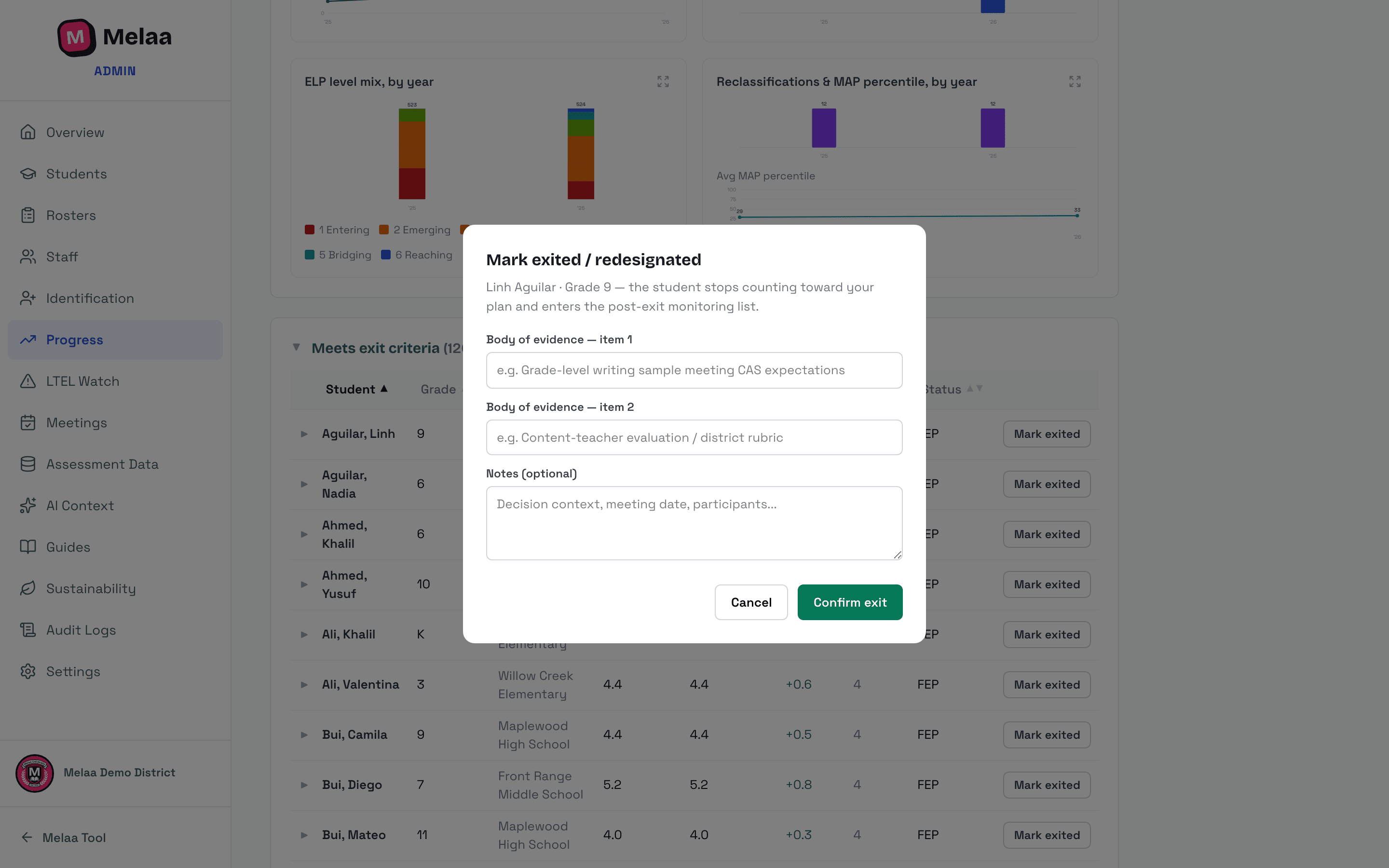
The dialog shows the rule check and requires supporting evidence (at least one evidence item with detail, plus notes; Colorado calls this the body of evidence, and in Wisconsin it is the Multiple Indicator Protocol for students at 4.5 to 4.9). ACCESS is one of multiple criteria, so Melaa will not record an exit on the score alone. Inside a discretionary band, or on Alternate ACCESS where your state's rule is not configured, you must also enter the district's basis for the decision (the secondary measure). Below the state's bar, the exit is refused (Missouri's EL-Portfolio is the documented exception).
Everything you enter, the rule check, and the basis print in the redesignation packet and the audit binder. Exited students stop counting toward your billable student total and move to the monitoring list with a Monitor Year X of Y label; after monitoring they stay on the roster as former MLs for the four post-exit years federal reporting covers. Undo keeps the prior decision on the student's record.
Several at once: open "Meets exit criteria", tick students (or the header checkbox for the whole list), and click "Mark selected exited". The dialog lists every student and takes one body of evidence recorded on each. Each student goes through the same rule check as a single exit; anyone who needs a documented reason, or fails a check, is left unchanged and listed so you can mark them individually.
Mark exited: body-of-evidence modal (Melaa Demo District, fictional data)
Settings → Exit / Redesignation Marking controls whether school admins can mark exits or only district admins.
Monitoring & re-entry review
Exited students appear in the monitoring bucket with a Monitor Year X of Y label.
Melaa surfaces re-entry concerns automatically: a warning shows when a monitored student's most recent academic percentile is at or below the 30th, or when no monitoring check-in (a recorded check-in or a finalized monitoring letter) has been recorded this school year.
Monitoring check-ins (button in the exports card on Progress) lists every exited student with the monitoring year and whether this semester's check-in is due (fall = July-December, spring = January-June). Record check-in captures the date, teacher input, a grades summary, a concern checkbox, the action taken, and who reviewed it; ticking Concern also raises the student's re-entry review flag. History shows past check-ins with Edit and Delete.
The monitoring report CSV includes each student's check-ins this school year and the latest check-in's date, concern, action, and reviewer.
Use "Flag review" to mark a student for re-entry review and add a note (e.g. teacher-reported struggles). Flagged students show an orange banner; "Unflag" clears it. Re-entry itself is done with "Undo exit".
Monitoring signals draw on the data Melaa has (academic scores and check-ins); they don't replace staff judgment about whether a redesignated student needs to return to services.
Exports
The Exports card on the Progress page includes the accommodations roster CSV for test coordinators.
Every state also gets an EL/ML roster extract, a monitoring report, and a per-student redesignation Packet button on monitoring rows - all labeled in your state's terminology and built from each student's latest official result. Colorado's versions carry CDE vocabulary: NEP, LEP, PHLOTE (screened and not identified), FEP MY1/MY2, FEP Exit 1/2, Former ML, plus parent opt-out and years in the ELPA program.