Generate bilingual parent/guardian letters with a review-before-print gate.
Drafting a letter
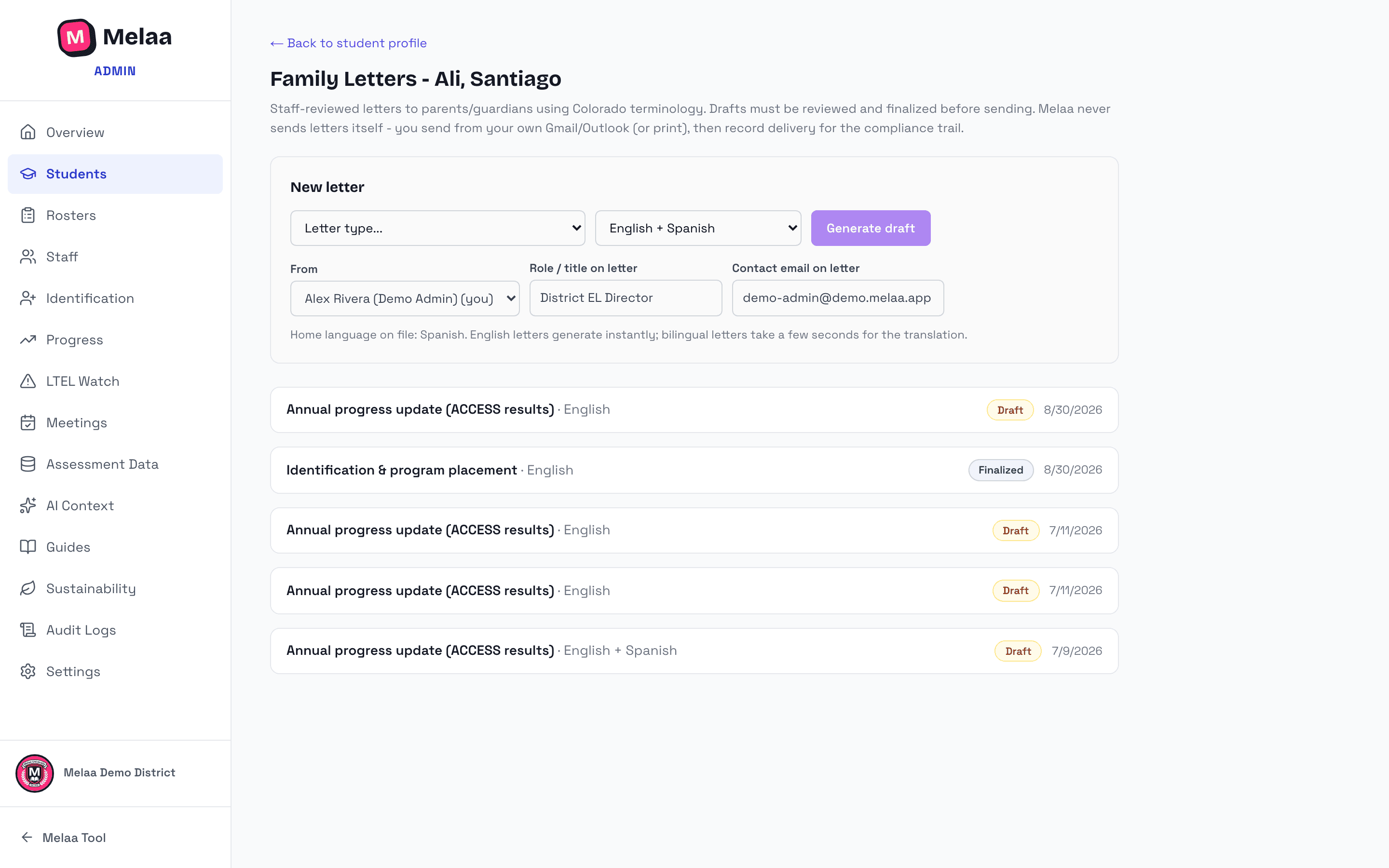
From a student's profile, click Open letters.
Pick the letter type (identification & placement, annual progress, redesignation, monitoring - types vary by state) and the language. "English + [language]" produces both in one document, defaulting to the student's home language.
Pick who the letter is from - any admin - and adjust the role/title and contact email that appear in the signature.
English letters generate instantly; bilingual ones take a few seconds for the translation.
Exit, redesignation and monitoring letters are only offered when they fit: the student must meet your state's exit criteria on their latest ACCESS scores, or have a recorded exit (monitoring needs a recorded exit). Otherwise Melaa explains why and offers the annual progress letter instead.
Machine translation is weaker for some languages. Somali drafts carry a notice that a qualified translator must check every sentence. Marshallese is not machine-translated: you get the English letter with a marked place for a translation by a qualified translator or interpreter, and it cannot be finalized until that line is replaced.
Family letters page (Melaa Demo District, fictional data)
The identification & placement letter includes all federally required content (reasons for identification, proficiency level, program methods and alternatives, exit expectations and graduation rate, IEP/504 coordination, and the family's rights). Fill your district's program name, how it delivers instruction, other program options, and expected graduation rate once under Settings → EL Program Notification and they auto-populate every identification letter; anything left blank shows as a [bracketed] prompt to complete by hand.
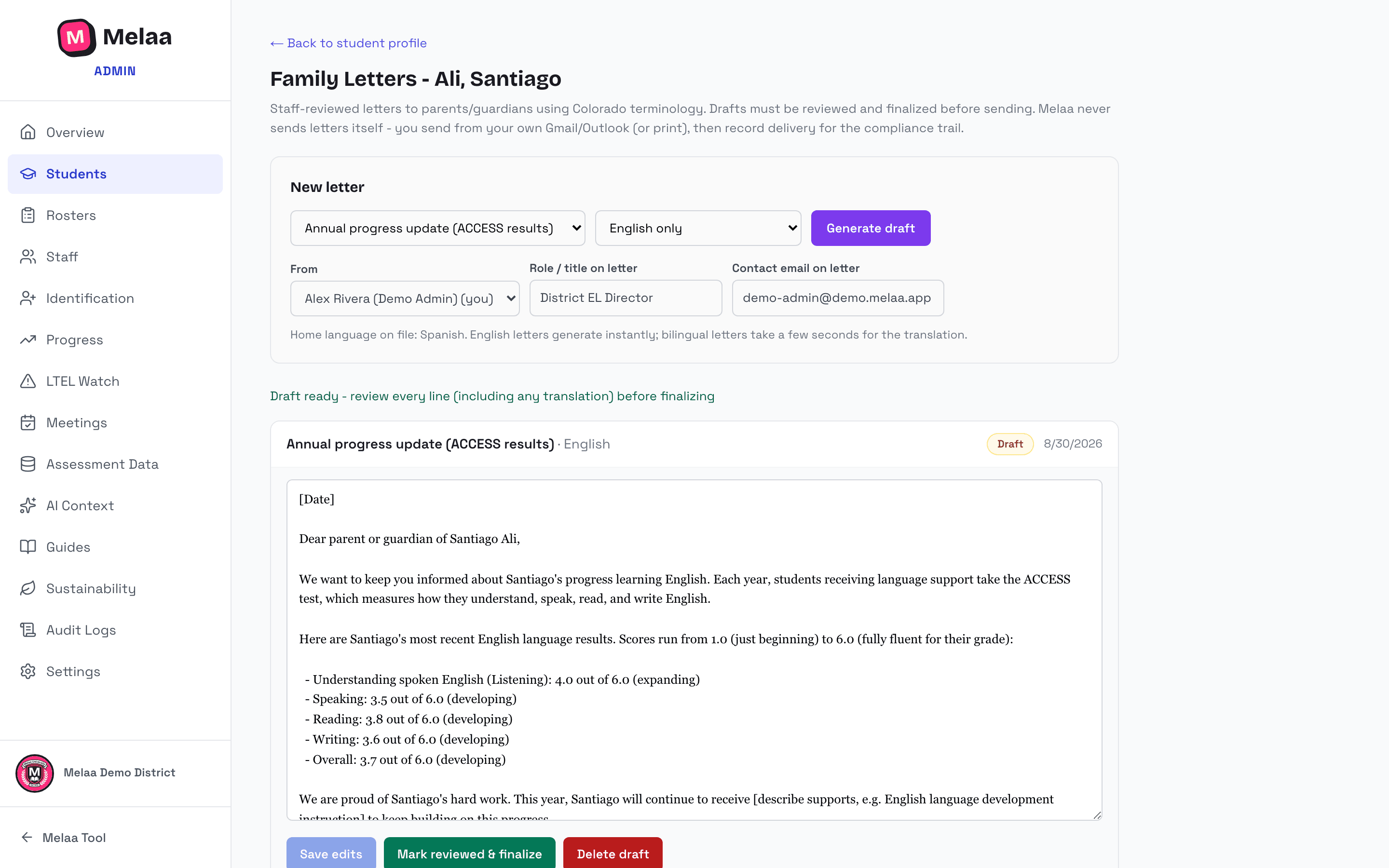
Review & finalize
Every draft must be reviewed: fill the [bracketed] placeholders, then "Mark reviewed & finalize". A bilingual draft carries a machine translation marked as such; federal guidance (ED/DOJ, 2015) requires that a person qualified in that language review and edit it before it goes to the family, so finalizing asks for the reviewer's name and capacity (district interpreter, certified translator, bilingual staff, other). The attestation is stored with the letter and the draft marker is removed.
Sending and printing only unlock after finalizing - so every letter that reaches a family has been checked by a person.
Finalized letters are locked and kept as the compliance record (reopen if you must edit; finalized letters can't be deleted).
A drafted family letter open for review (Melaa Demo District, fictional data)
Send from your own email & record delivery
"Draft in Gmail" or "Draft in Outlook" opens a compose window in YOUR email account with the subject and letter text pre-filled - the email comes from you, never from Melaa. The letter text is also copied to your clipboard as a backup for long bilingual letters.
Add the family's email address in your mail client and send (or use Print for a paper copy home).
Back in Melaa, click "Mark as sent" so the delivery date and method land in the compliance trail - it shows on the letter, in audit logs, and in the student's Audit Binder.
When the family returns a signed copy or confirms they received it, click "Mark returned / acknowledged" to record the date.
Recorded delivery can be undone if you marked it by mistake.
Melaa never sends letters itself and never sees the family's email address - delivery always happens from your district account.