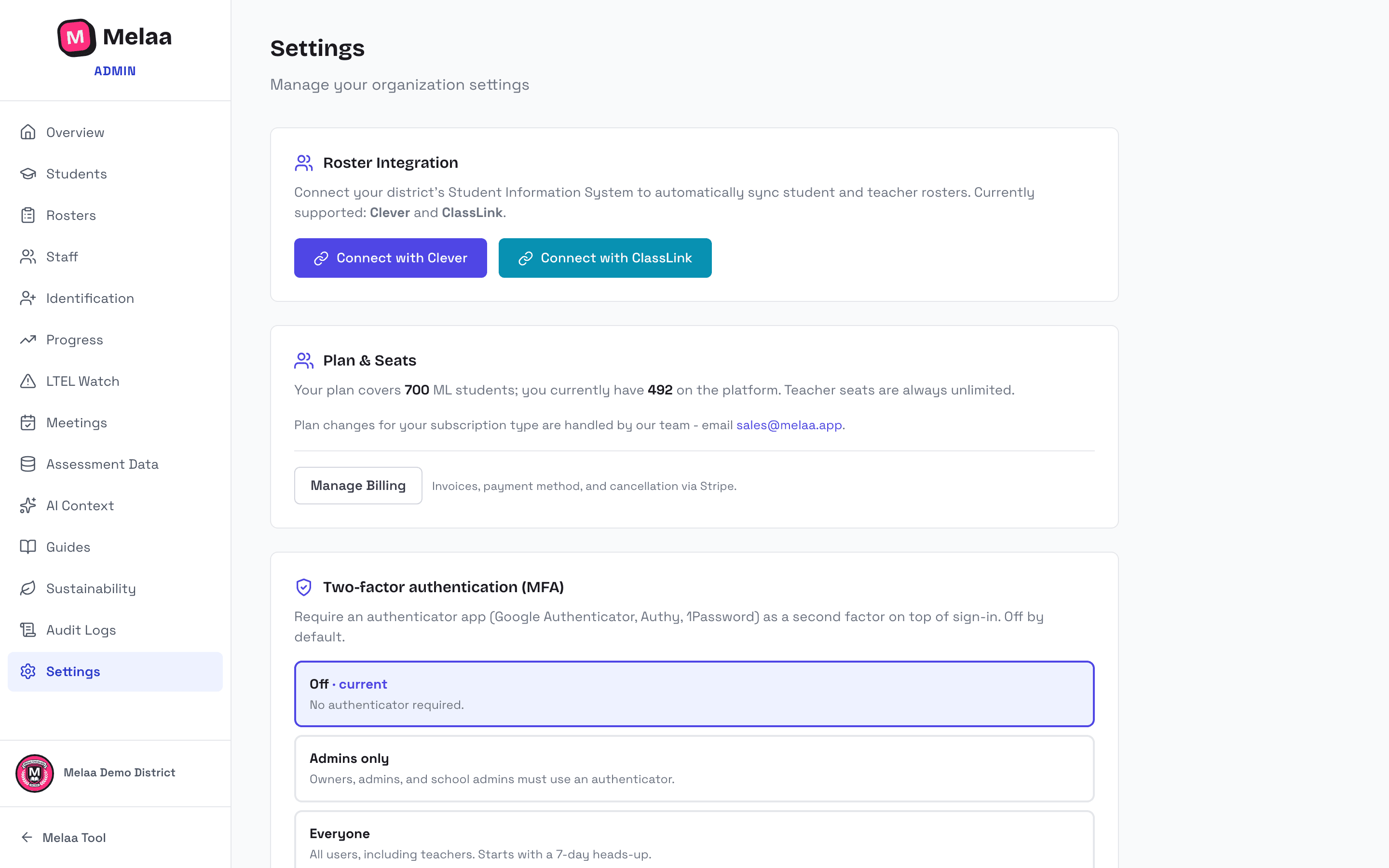
District policies, state configuration, and roster integration (Clever, ClassLink, or your SIS through OneRoster).
Org policies (district admins)
Settings is a long page. The row of section links at the top stays in view as you scroll; click one to jump straight to that section.
State - sets your terminology (e.g. Colorado's NEP/LEP/FEP), exit criteria, and which compliance exports appear. Set this first.
Perceived Score Entry - off / district admins / district + school admins.
Score Entry & Editing - who can edit official ACCESS scores (default: district admins only) and who can enter Screener records (default: school admins too).
Exit / Redesignation Marking - whether school admins can mark exits.
Student Notes Visibility - author + admins (default) or all staff on the student.
EL Program Notification - your program name, how it delivers instruction, other program options, and expected graduation rate. Set once and Melaa includes them in every identification & placement letter so those notices meet the federal content requirements.
The Plan & Seats card shows your subscription, student count, and billed capacity - see the Billing guide for the full walkthrough.
DPA Contact records the district staff member responsible for data-privacy agreements; keep it current so notices reach the right person.
New school year (Settings → Open rollover, owners and district admins) - for districts that manage their own roster. Pick the year to roll into and review the preview: how many students move from each grade to the next (PK to K, K to 1, up to 11 to 12), grades Melaa can't promote (left unchanged for you to fix on Students), and the 12th graders. Untick any 12th grader staying another year; the rest are withdrawn as graduates (their records stay; graduation is not an EL exit). Last year's plans are closed as a read-only record, and "Start a draft from each signed plan" copies every active student's signed plan into a new-year draft that needs review and a new signature. Apply rollover runs once per school year and is recorded in the audit log. Districts on Clever or ClassLink see a note instead: the nightly roster sync brings the new grades.
Daily deadline email - your own on/off switch (also on the Family Notices page). When on, each morning Melaa emails you a count of what is due or overdue in your scope: identification cases past or within 7 days of the state window, plans left as unsigned drafts for 30+ days, exited students due for this semester's monitoring check-in, and served ELs without a reviewed family notice (from August 1) or with a finalized notice not yet recorded as sent, and (when your district logs service in Melaa) students who received less than 80% of their planned service minutes over the last 4 weeks. District admins get the whole district; school admins get their schools. No email is sent on days with nothing due, and it never names students. The unsubscribe link in the email turns off only this email.
Disconnecting a roster sync offers an optional purge of synced records - read the prompt carefully before confirming.
Roster sync & SSO
Connect ClassLink from Settings (Connect with ClassLink) to sync students, staff, and assignments nightly; Sync Now runs one immediately.
Clever works differently: a Clever district administrator authorizes Melaa in Clever, then you click Connect with Clever in Settings and "We've authorized Melaa in Clever". Melaa confirms the district (and which schools belong to your account) before anything syncs. Settings then shows Connected, the schools it covers, Sync Now, and the nightly sync. If Clever later stops accepting the connection, Settings says so and your admins get an email; your data stays as it was.
Clever brings in each student's EL status and home language when your district shares those fields. Staff and district administrators from Clever get teacher-level logins; grant admin roles in Staff.
No Clever or ClassLink? Direct SIS connections are available on request: we turn them on for your district. Connect your SIS (OneRoster) reads PowerSchool, Skyward or Infinite Campus directly: enter the base URL and credentials from your SIS, Test connection, then Save. Melaa confirms it before the first sync, keeps only students your SIS flags as English learners or who match a student already in Melaa by state or local ID, and asks you to confirm name-only matches under Review student matches. See the Connect Your SIS with OneRoster guide.
PowerSchool without Universal Rostering? Once we turn it on for your district, Connect PowerSchool (Melaa plugin) builds a read-only plugin for your district: choose the state ID, English learner and home language fields, download the plugin ZIP, have your PowerSchool administrator install and enable it, then paste its client ID and secret, Test connection and Save. See the Connect PowerSchool with the Melaa Plugin guide.
Google, Microsoft, ClassLink, and Clever single sign-on work automatically for staff whose email matches the roster. Log in with Clever is on the sign-in page, and staff can also launch Melaa from the Clever Portal once your district shares it with them.
Prefer manual control? CSV upload plus manual assignment (student profiles or the Students page's Bulk Assign) do everything sync does.