Get scaffolds, printable graphic organizers and worksheets, and plan for multiple students at once.
Better prompts, better scaffolds
Be concrete: name the subject, grade, and task ("a paragraph frame for a persuasive essay on recycling").
Ask for differentiation explicitly ("give me versions for this student's current level and one level up").
Follow up in the same chat - the assistant remembers the conversation for the selected student.
Graphic organizers & worksheets
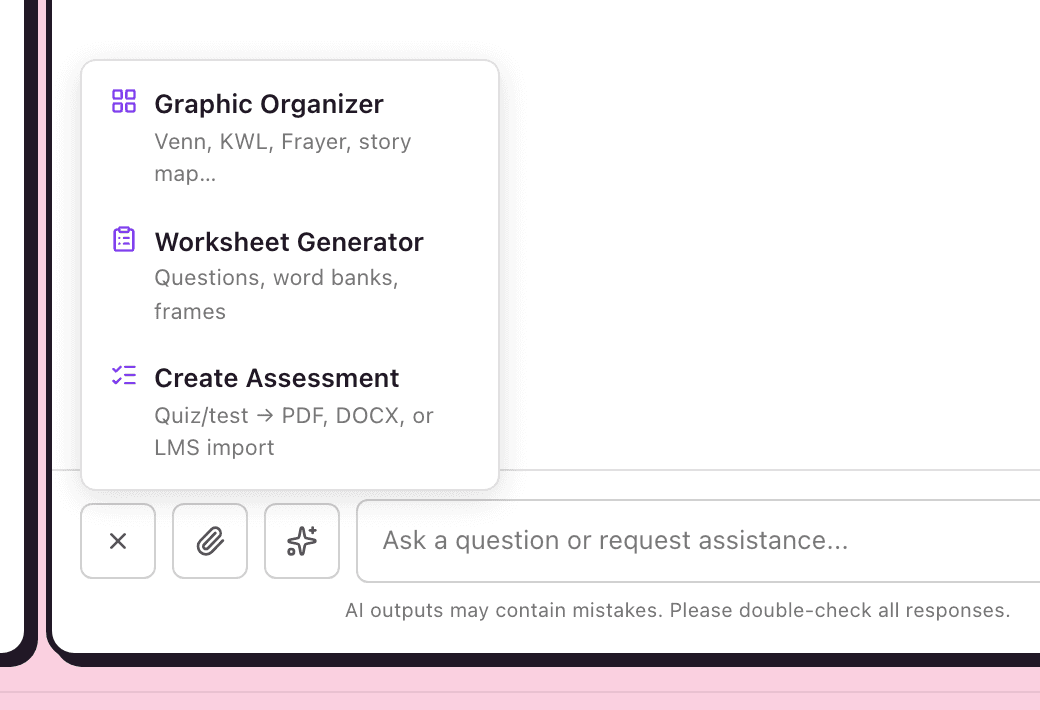
Click the + button beside the chat box and choose Graphic Organizer (Venn, KWL, Frayer, story map, and more) or Worksheet Generator (questions, word banks, sentence frames).
Describe the topic; the organizer arrives in the chat, already differentiated to the student's proficiency levels.
Print it or download DOCX to edit in Word/Google Docs.
The + menu: Graphic Organizer and Worksheet Generator (Melaa Demo District, fictional data)
Attach a file
Click the paperclip beside the chat box to attach a PDF or image (up to 10MB).
Then ask for what you need: "Adapt this worksheet for this student" or "Build sentence frames for the questions on page 2."
The assistant reads the file alongside the student's WIDA profile, so the adaptation is specific, not generic.
Privacy: Word documents and PDFs with a text layer are extracted to text and student names are removed before anything reaches the AI. An image, or a scanned PDF with no text layer, is sent as supplied and cannot be name-redacted, so avoid attaching those when they contain student names.
Group mode
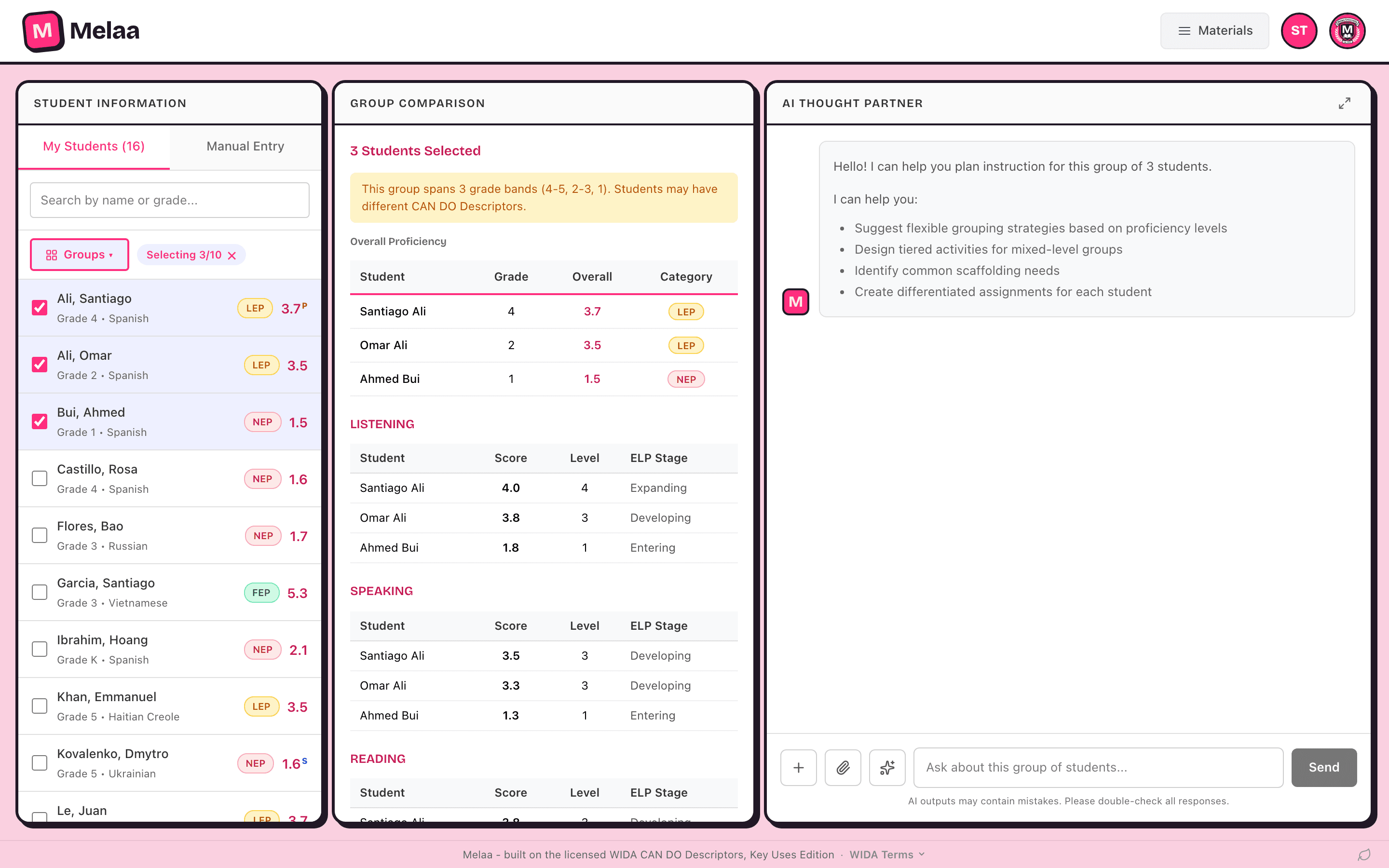
In the student list, switch on group mode and check two or more students to compare their composite scores side by side.
Group chat uses pseudonyms (Student A, Student B) to protect names, and answers with grouping and differentiation strategies for the whole set - for example, station planning by proficiency band.
Group mode comparing several students (Melaa Demo District, fictional data)
Your materials library
Every organizer, worksheet, and assessment you generate is saved automatically - open Materials in the top bar to find past work instead of regenerating it.
Search by title or student, filter by type, and reopen any item to export it again or drop it back into the chat to adapt.
Saved materials store the differentiated content only, not student names, and follow the same privacy and retention rules as the rest of your data.
Did you use it? (adapted materials)
When you generate an organizer, worksheet, or assessment for a student or group you selected, a small bar under it asks "Use with {student}?". It never appears after a plain question and answer, and it asks once per material.
"Used it today" shows the record already filled in: the student (for a group, tick who you used it with under "Used with"), today's date, the language domains and level taken from the material and the student's scores, and an optional note. Change anything, then Save. It is recorded on the student's profile as differentiated instruction; it is not counted as service minutes.
If you are an EL teacher (your job title or subjects say ESL, ELD, EL, ML, or bilingual, or you already log service sessions), you also get "Also log as a service session". It opens the usual service session form with the students, date, domains, and the material as the focus filled in; add the minutes and attendance and save.
"Planning to use it" puts the material on your To confirm list (the "To confirm" button with a count in the top bar). Melaa reminds you when you next open Melaa and when you open that student; answer "Used it" or "Didn't use it". Items you do not answer drop off after 7 days.
"Not now" closes the bar, and Melaa does not ask about that material again.
"Adapted materials" in the Student Profile panel lists what was used with the student, when, and by whom, with the count for this semester. Click a title to open the material.
Nothing is recorded when a material is generated, only when you answer. Recording is not done by AI, and these records are never sent to the AI assistant.
Sharing materials with a student's teachers
On any generated material, click "Share with a teacher." Melaa lists the student's other rostered teachers (for example, their biology teacher) so you can send it to the right person.
The recipient sees a badge on that student and a heads-up list the next time they open Melaa; they can open it, export it, or ask Melaa to adapt it for their classroom.
If you share with a teacher who has never signed in, Melaa emails them a nudge to activate their account (a district admin can turn these emails off in Settings). Teachers already using Melaa are notified in the app only.
A shared material is a shared copy: the creator and recipients can keep refining it, and each edit is tracked with who made it. You can only share to teachers who already have that student on their roster.